Setup and create config files for the scan
(a). Set username and password for mongodb
Set username and password using the command bellow to connect to the mongoDB with authentication.
Input LocalDB admin's username and password that you have set prebiously.(e.g. USERNAME=hokuyama, PASSWORD=itkweek)
$ cd ~/work/YARR
$ export username="USERNANE"
$ export password="PASSWORD"
(b). Setup database config
Set the config files using the following command to save the mongoDB's information.
You don't have to change anything in this tutorial. Please answer "y" in all steps.
$ ./localdb/setup_db.sh
[LDB] Set editor command ...
[LDB] > emacs
[LDB]
[LDB] Checking Python Packages ...
[LDB]     ... OK!
[LDB]
[LDB] Checking Database Config: ...
[LDB]
[LDB] -----------------------
[LDB] --  Mongo DB Server  --
[LDB] -----------------------
[LDB] IP address       : 127.0.0.1
[LDB] port             : 27017
[LDB] database name    : localdb
[LDB] -----------------------
[LDB]
[LDB] Are you sure that is correct? (Move to edit mode when answer 'n') [y/n/exit]
[LDB] > y
...
[LDB] -----------------------
[LDB] --  User Information --
[LDB] -----------------------
[LDB] User Name        :
[LDB] User Institution :
[LDB] -----------------------
[LDB]
[LDB] Are you sure that is correct? (Move to edit mode when answer 'n') [y/n/exit]
[LDB] > y
...
[LDB] -----------------------
[LDB] --  Site Information --
[LDB] -----------------------
[LDB] site name        :
[LDB] -----------------------
[LDB]
[LDB] Are you sure that is correct? (Move to edit mode when answer 'n') [y/n/exit]
[LDB] > y
...
[LDB]   Access 'https://localdb-docs.readthedocs.io/en/master/'
(c). Create scan config files from mongodb
To create config files for scanConsole of YARR-SW, Run either command bellow.
(We use the downloaded component's peoperty. Device's serial number is "20UPGRS0000009" or "20UPGRS0000010", chip's serial number is "20UPGRA0000026" or "20UPGRA0000027")
For monkeyisland,
$ ./localdb/bin/localdbtool-retrieve pull --chip 20UPGRS0000009
For yarrpixdaq,
$ ./localdb/bin/localdbtool-retrieve pull --chip 20UPGRS0000010
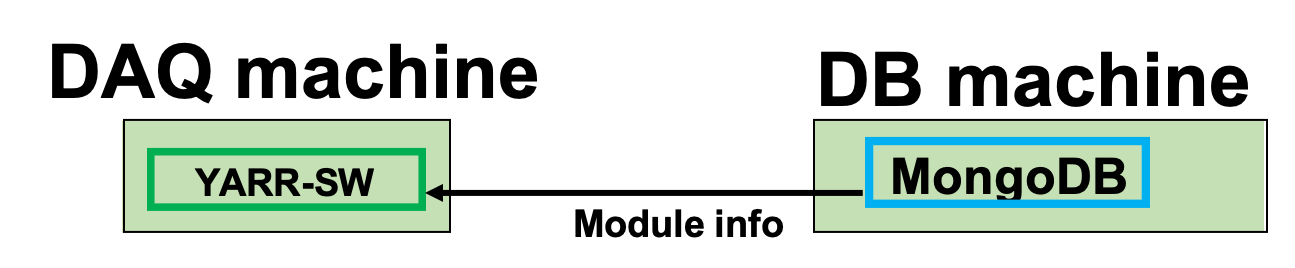
The config files for the module are generated in 'db-data'.
(d). Change stage name in the scan config file
Edit the connectivity file(db-data/connectivity.json) and change stage name to "WIREBONDING".
{
    "stage": "WIREBONDING",
    "chips": [
        {
            "config": "./db-data/20UPGRA00000XX.json",
            "tx": 0,
            "rx": 0
        }
    ],
    "module": {
        "serialNumber": "20UPGRS00000XX",
        "componentType": "module"
    },
    "chipType": "RD53A"
}
(e). Change the DCS uploader config file
To include DCS data to the scan result, edit the DCS uploader config file (localdb/configs/influxdb_connectivity.json) as follows:
{
    "environments" : [
        {
            "measurement" : "Temperature",
            "dcsList" : [
                {
                    "key"        : "temperature",
                    "data_name"  : "temp1",
                    "data_unit"  : "temp1_unit",
                    "description": "Room Temperature [C]",
                    "setting"    : 28
                },{
                    "key"        : "temperature",
                    "data_name"  : "temp2",
                    "data_unit"  : "temp2_unit",
                    "description": "Board Temperature [C]",
                    "setting"    : 28
                }
            ]
        },{
            "measurement" : "LV",
            "dcsList" : [
                {
                    "key"        : "vddd_voltage",
                    "data_name"  : "LV_Voltage",
                    "data_unit"  : "LV_Voltage_unit",
                    "description": "VDDD Voltage [V]",
                    "setting"    : 1.75
                },
                {
                    "key"        : "vddd_current",
                    "data_name"  : "LV_Current",
                    "data_unit"  : "LV_Current_unit",
                    "description": "VDDD Current [A]",
                    "setting"    : 1.1
                }
            ]
        }
    ]
}
Go to next step.
QC scan